
Setting Up and Using Tuya Zigbee IR Remote (TS1201) in ZHA
With Home Assistant announcing that infrared is now "becoming a first-class citizen", this guide may become defunct quickly. I personally wouldn't mind that because this required more setup than I would've liked.
I've been doing home automation stuff since at least 2012, cutting my teeth with X10 devices. Home automation has come a long way since then, and I've been happily using a Home Assistant Yellow (RIP) since around September 2024. The Yellow supports Zigbee and Bluetooth out-of-the-box, and I was able to easily install a GPIO module to support Z-Wave devices as well. With networking being a prerequisite to access the device—and thus WiFi devices being supported—I'm able to support a fairly large ecosystem.1
One technology standard that's been missing, though, is infrared. With the purchase of a Tuya Zigbee IR Remote, I've now solved this. But since I wanted to do this within ZHA2, it took me more than a few minutes to set everything up. There are plenty of great guides for zigbee2mqtt, but nothing step-by-step for ZHA. So I'm writing this for both you and future me.
- Buy the device. My particular model is the TS1201. One of the aforelinked guides has a list of purchase options for AliExpress and Amazon US and NL. I paid a little over USD$30.
- Set up the device. The included manual suggests that it should come with two AAA batteries, but mine did not. After popping two in, you should see a subtle blue LED in one of the four corners on top of the device. To enter pairing mode, in the battery compartment press and hold the Reset button for ~5 seconds. That previously mentioned LED should now be blinking. Adopt the device into ZHA as normal.
- Learning codes. For each infrared device you want to control, you'll need to learn the codes being sent. You can use the Tuya blaster for this. However, if you go to the device details page, you'll see it's quite barren with nothing to indicate how you learn the codes.
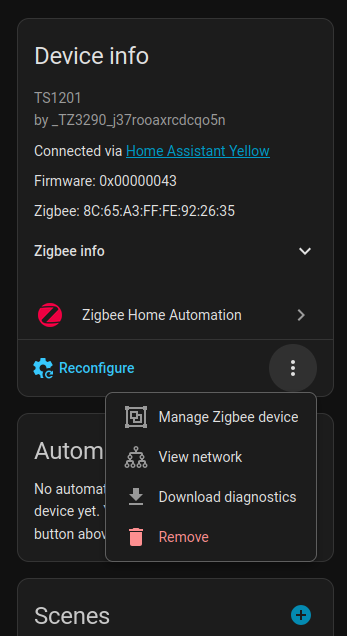
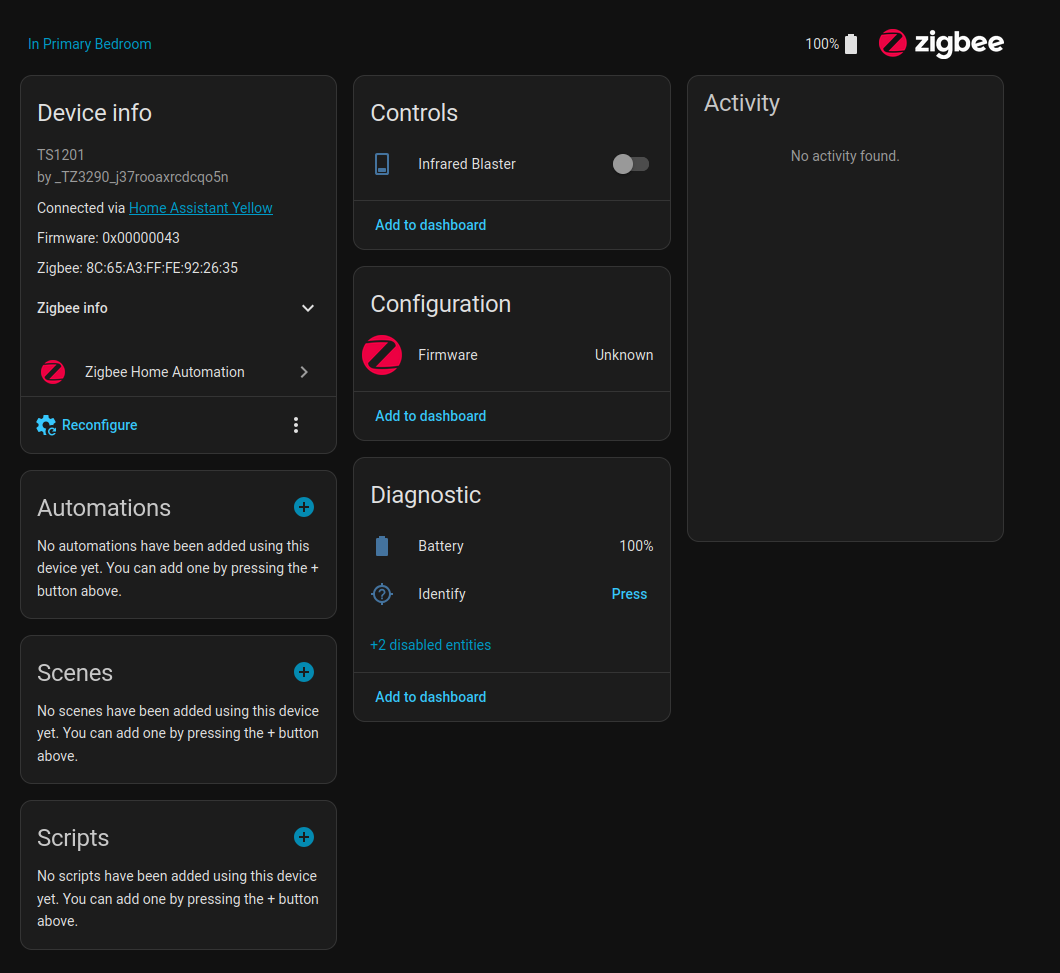 To learn them, click the three-dot menu beside the Reconfigure button on the left-hand pane. Then click Manage Zigbee Device.
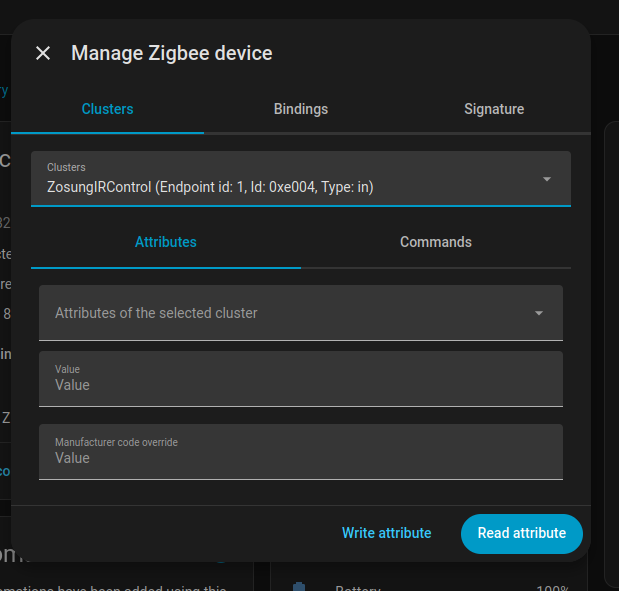
 A new modal will appear with three top sections and will have Clusters selected by default. There'll be a dropdown menu and two more sections below it. From the dropdown, select "ZosungIRControl".3
 Click the Commands subsection, then select IRLearn from the "Commands of the selected cluster" dropdown. In the "on_off" section, select "true".
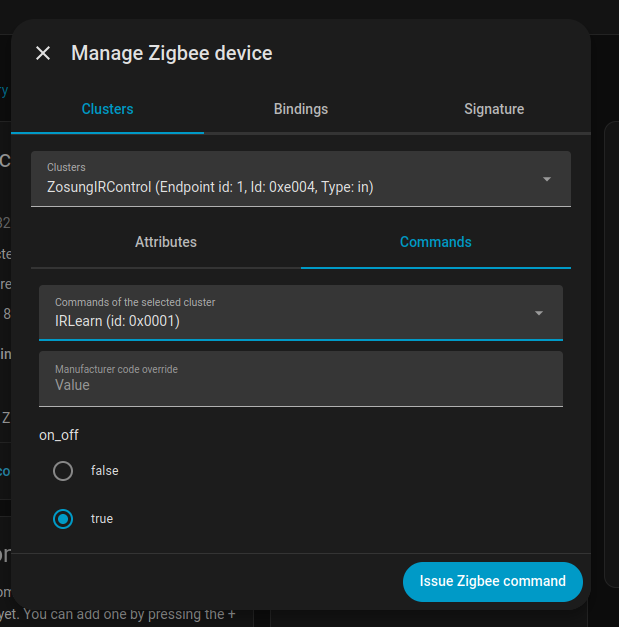 Then, with your infrared remote in one hand aimed at the blaster and your finger hovering over "Issue Zigbee Command", press the "Issue Zigbee Command" button then press the button on your remote.
After doing so, you can navigate back to the attributes tab, select "last_learned_ir_code" from the "Attributes of the selected cluster" dropdown, then click "Read attribute". If all went well, you should have a base64-looking string in the Value box.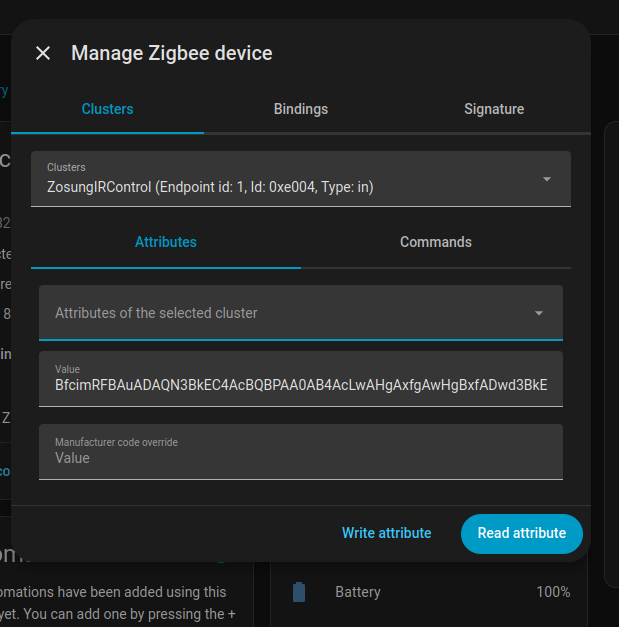
- Testing codes. You can now take that string, click back to the Commands tab, select "IRSend" from the dropdown, and paste the code into the "code" box. (You can ignore the "Manufacturer code override" box.) If all went well, your transmitter will send out the infrared command and your device should have done whatever you told it to! 4
But now that you have the codes, how do you use them in Home Assistant?
The easiest way I've found is to set up a template script and use that everywhere. I stole and parameterized this script from a GitHub comment on an issue request to have this device's ZHA quirk added:
alias: Send Infrared Signal
sequence:
  - data:
      cluster_type: in
      endpoint_id: 1
      command: 2
      command_type: server
      params:
        code: "{{ infrared_code }}"
      cluster_id: 57348
      ieee: >-
        {{ device_attr(infrared_blaster_device, 'identifiers') |
        selectattr(0,'eq','zha') | map(attribute=1) | first }}
    action: zha.issue_zigbee_cluster_command
mode: single
icon: mdi:remote
description: ""
fields:
  infrared_blaster_device:
    selector:
      device: null
    name: Infrared Blaster Device
    required: true
  infrared_code:
    selector:
      text: null
    required: true
    name: Infrared Code
    description: The base64 string to send to blaster
It creates a UI that looks like this:
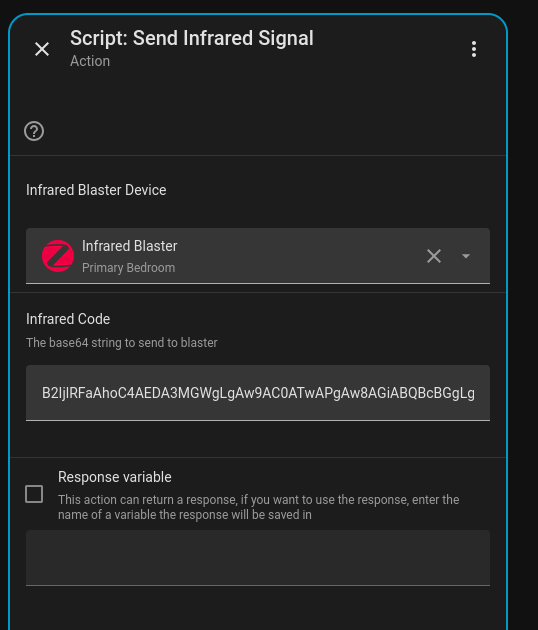
However, I will rarely call that script directly; instead, I create other scripts that call it. Think of it as an abstract class being used in other concrete classes. For example, here's a script that uses that base script and turns some candle lights on:
sequence:
  - action: script.candles_on
    metadata: {}
    data:
      infrared_blaster_device: cca75c2d831612b6897906fcdf7bf5e3
      infrared_code: >-
        B2IjlRFaAhoC4AEDA3MGWgLgAw9AC0ATwAPgAw8AGiABQBcBGgLgCwNAAYAXQCPgEwMHIaBiI6YIWgI=
alias: "Candles: On"
description: Turn the candles on
icon: mdi:candle
If I ever need to correct a code or change the transmitter device, I can do it one place instead of (possibly) dozens of automations and dashboards, etc.
And now, I can control infrared devices in my smart home. All just in time for this to all be replaced with ESP32 blasters and, I'm sure, a more intuitive UI for learning codes. 🥲
Though as a general rule, I don't allow Internet-connected devices in my home automation network if I can help it. I'd rather use something local, like Zigbee or Z-Wave. Heck, even Bluetooth for that matter. ↩
I know, I know. Literally everyone says to use zigbee2mqtt and for all very good reasons. But ZHA has supported everything I've needed so far, so I have no real reason that justifies all the hassle of switching over. ↩
There's also ZosungIRTransmit, but I have clue what that does; it wasn't used at all in my setup and subsequent use. ↩
In practice, I had to repeat Step 3 several times to make sure I had an accurate code. In my testing, it would sometimes pick up a different string than the one I should have gotten even though I was pressing the same button on the remote each time. I found having a virtual scratchpad handy where you can keep track of all of the codes it puts out quite helpful. It shouldn't take more than five minutes of doing an IRLearn and reading the attribute before a single string repeats itself often enough for you to feel confident that you have the right code. And you can always do an IRSend for reassurance. ↩